Vehicle intake and lot tracking for car dealerships
Every car on your lot, tracked from auction to sale.
Print a QR sticker for each car, scan it with any phone, and unlock or start your Teslas from the same app.
30 days free, no card needed. Rather see it first? Request a demo.
Work here? Sign in with the email (or username) and password from your invitation.
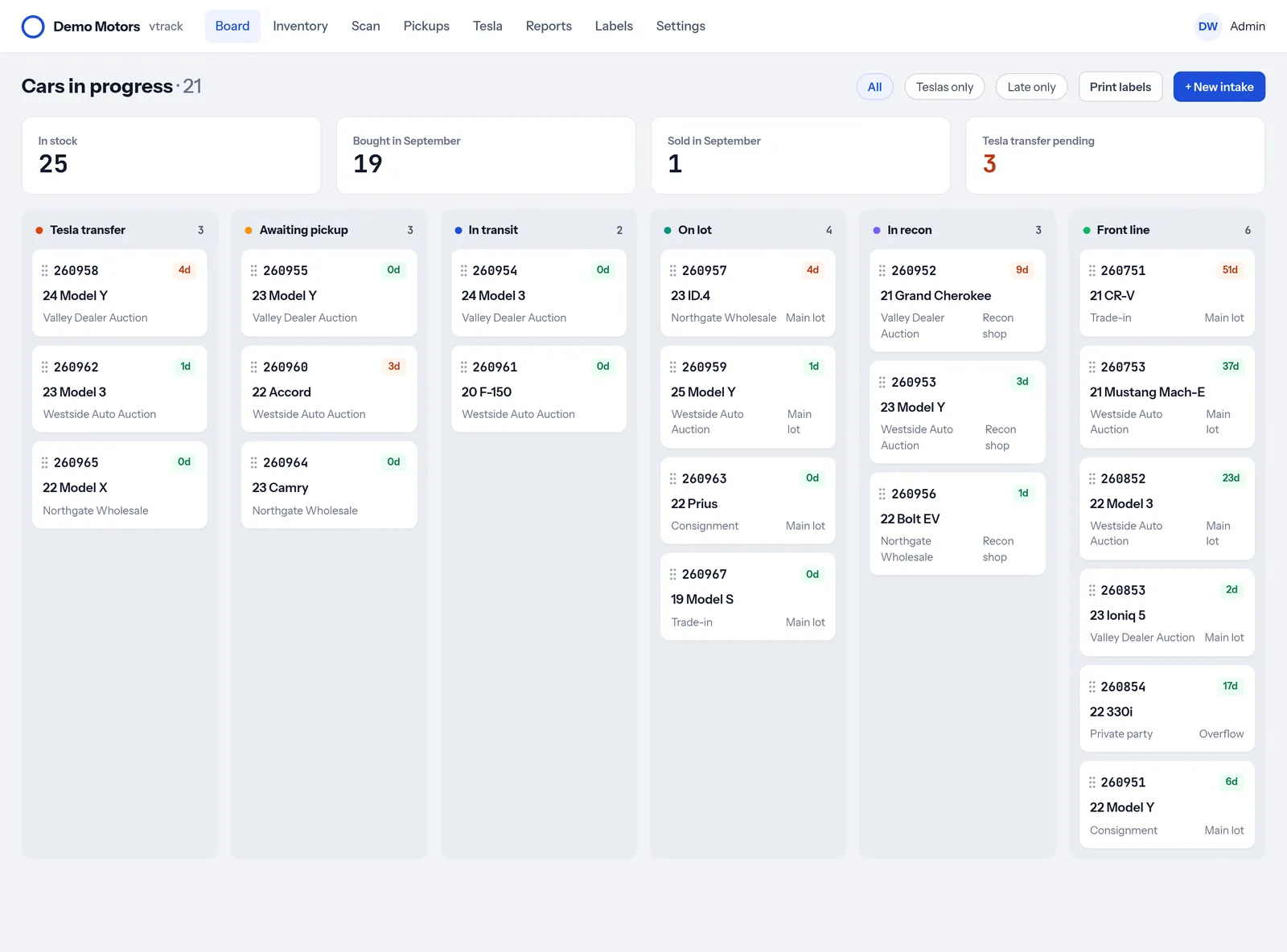
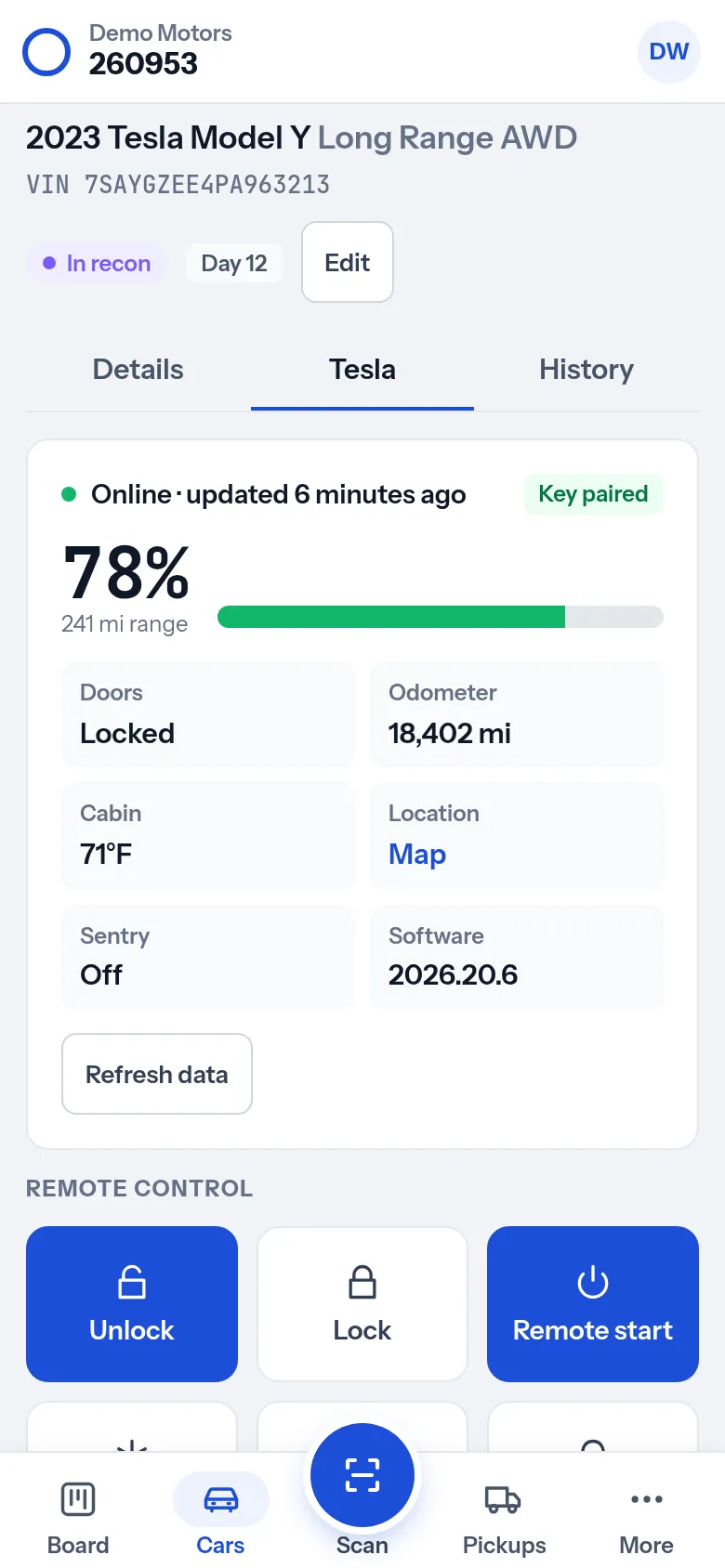
The old way and the new way
vtrack replaces the shared vehicle intake spreadsheet. The whole team works in one app, and the month-end numbers add up by themselves.
The old way
- One shared spreadsheet. Everyone types into the same file, one row per car.
- Typos. One wrong character in a VIN or a date, and the row is wrong until someone notices.
- Month-end totals typed by hand. Someone counts cars bought, sold and in stock, and types the numbers in.
- “Where is the car?” Someone walks the lot or calls the driver to find out.
The new way
- One app, and everyone has their own sign-in. Each person sees what their role allows, and each step goes into the car's history with a name and a time.
- The VIN is checked as you type. A wrong check digit, or a car that is already in stock, is caught before it is saved.
- Monthly numbers add up by themselves. Bought, sold and in stock come from each car's purchase and sold dates.
- Every car has a place. The board shows each car from the Tesla transfer or pickup to the front line, and how long it has been in its stage. A scan of its sticker checks it in at a spot on the lot.
How it works
From the auction to the front line in five steps. Each step is a button or a scan, not a row to type.
-
Add the car
Scan or type the VIN. The year, make and model fill in, and the next stock number is given out when you save.
Stock numbers are the year and month plus a count: 260923 is car 23 of September 2026. Make and model come from the VIN for Teslas, and for other brands from the free government VIN lookup (NHTSA) when it is turned on.
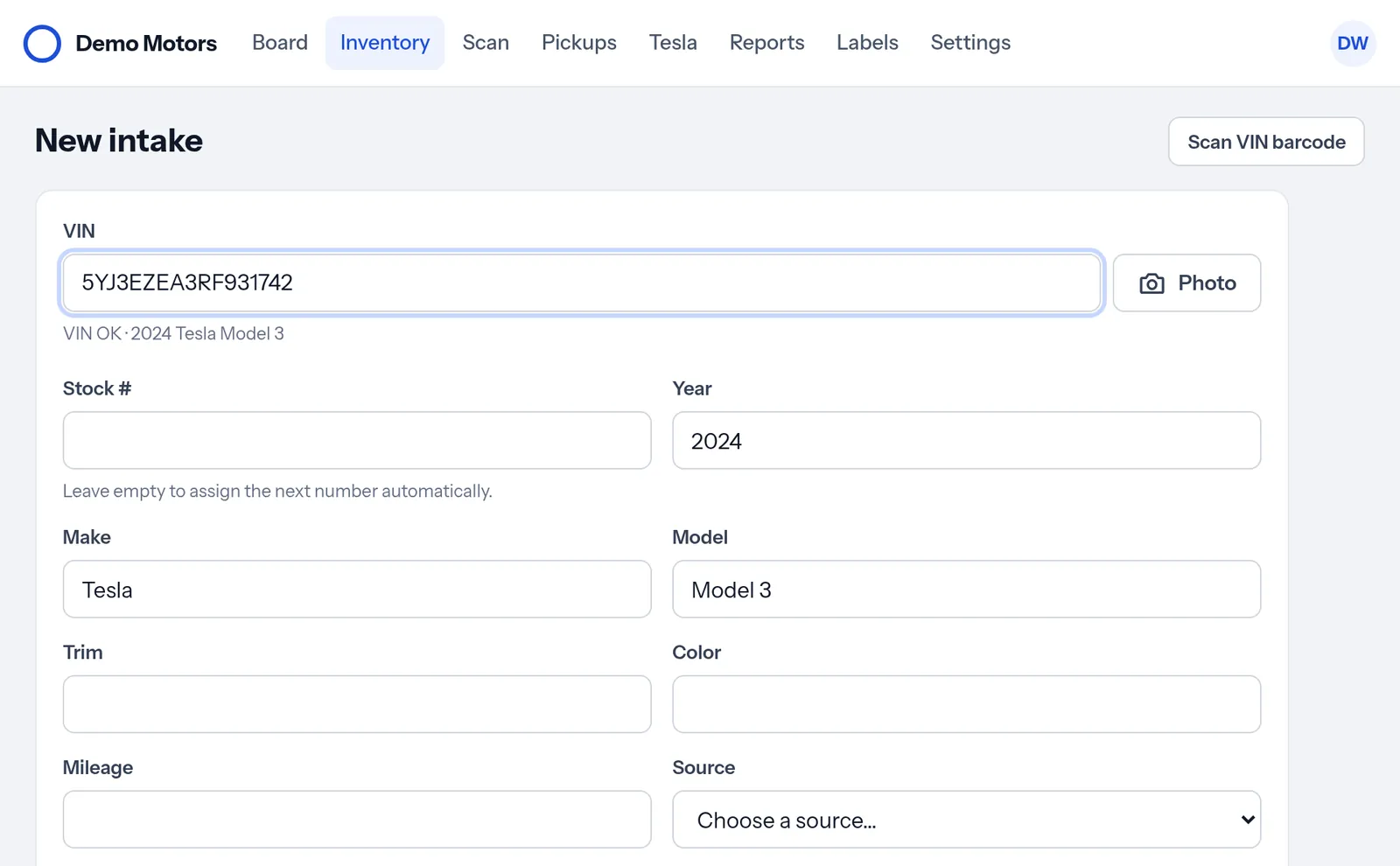
New intake: type or scan the VIN, and the year, make and model fill in. -
Print its sticker
Tick the cars, pick the label size and print. By default each windshield sticker has a QR code, a big stock number, the car and its full VIN, and the small key tag the last 8 characters of the VIN. You choose what prints on each size and in which order, and can add lines of your own, like “Keys in office”.
Print at 100% (actual size). Thermal labels fade in the sun, so stick them inside the glass or use a hang tag.
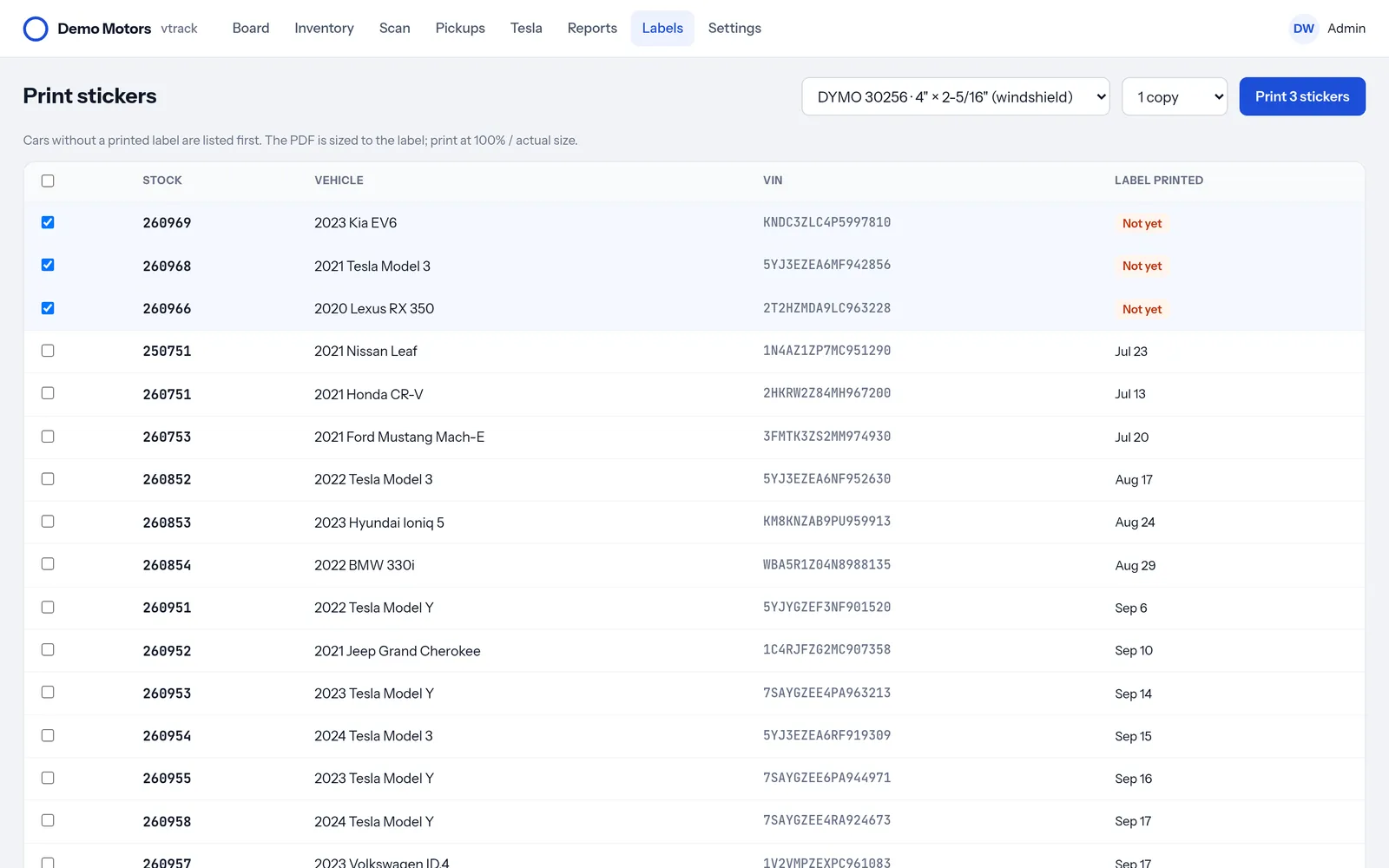
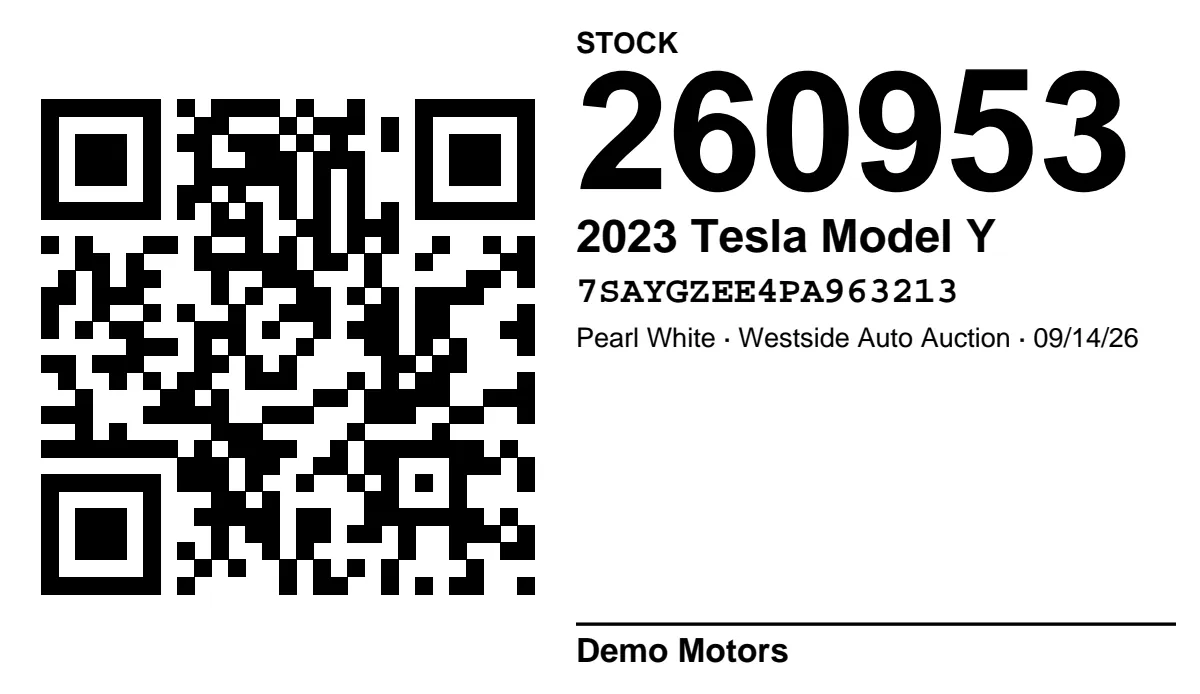
The Labels page, and a printed sticker on a DYMO 30256 label. -
Scan it on the lot with any phone
Open Scan and point the camera at the sticker, or at the VIN barcode on the driver door pillar or windshield. The car's page opens.
In check-in mode, every scan also records the spot on the lot. A car that was waiting for pickup or on its way is marked On lot.
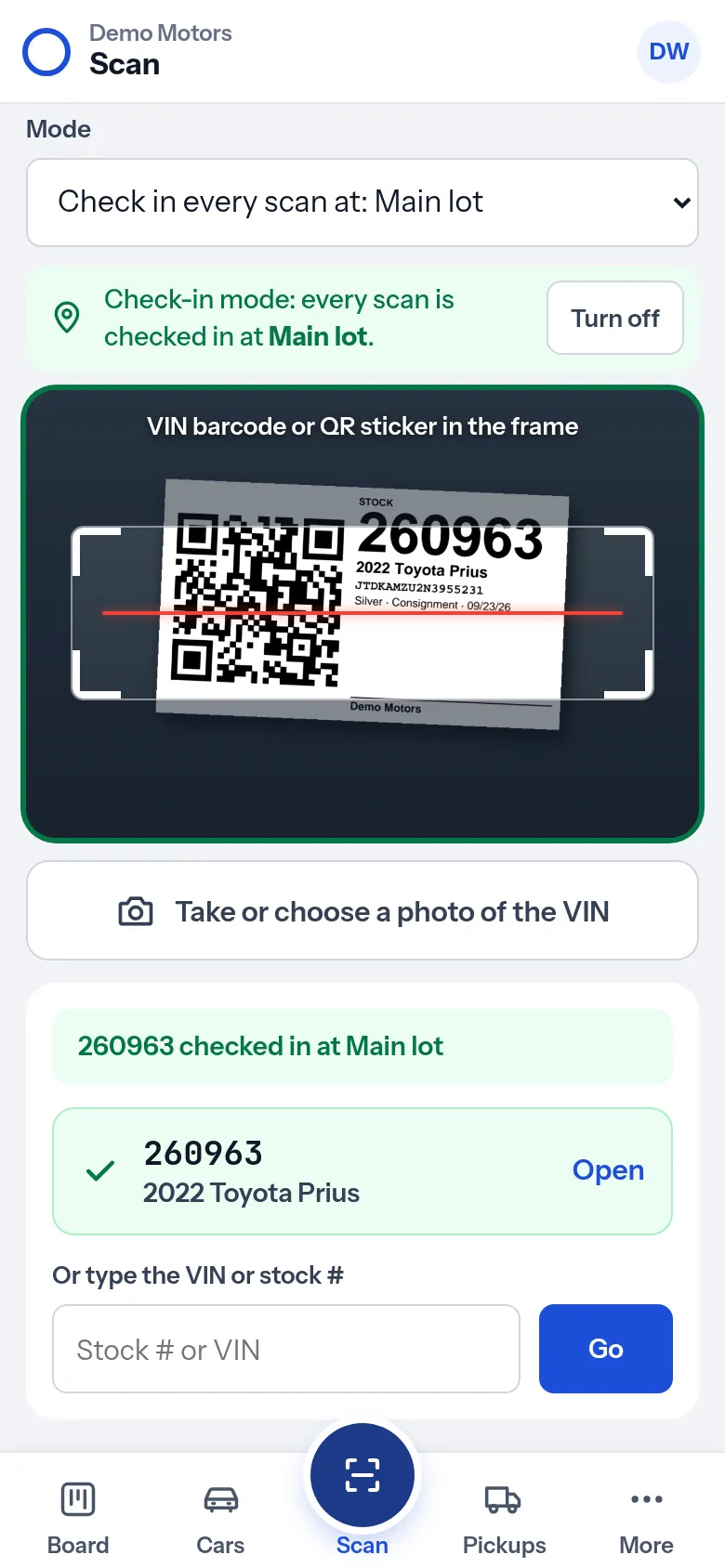
Check-in mode on a phone: the sticker is read and the car is checked in at Main lot. -
Watch it move through the board
The board has a column for each stage, from Tesla transfer to Front line. Each card shows how many days the car has been there.
To move a car on, drag its card to another column (on a phone, press and hold the card first), or tap its Move button. Each person can only make the moves their role allows.
A card turns orange when the car is late, for example after 2 days waiting for pickup, 7 days in recon or 45 days on the front line.
A close-up of the board: day counts in green, late cars in orange. -
Sell it, and the monthly numbers add up
A manager marks the car Sold. The monthly report counts cars bought, sold and in stock for the last 12 months, with nothing typed by hand.
It also splits consignment from dealer inventory, and you can download it as a CSV file for Excel.
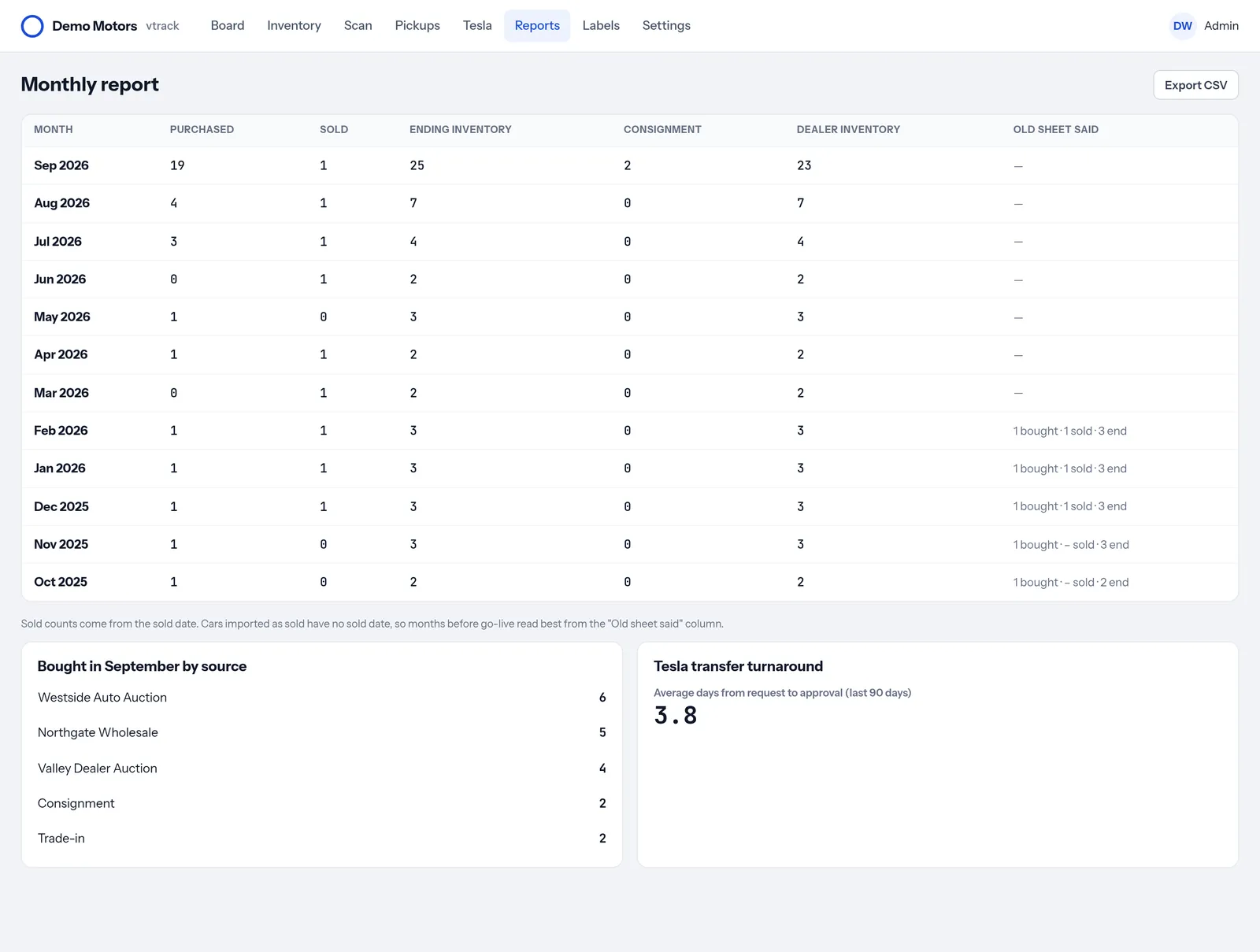
The monthly report adds up bought, sold and in-stock cars for you.
Features
Built for the office, the drivers and the lot crew.
-
Pipeline board with “late” warnings
Six columns, from Tesla transfer to Front line. Each card counts the days in its stage and turns orange when the car is late. Drag a card to move the car on, on a computer or a phone. Filter for Teslas only or late cars only.
-
Phone scanner
Reads our QR sticker and the VIN barcode on the car with any phone's camera. Nothing to install. A flashlight button helps in dark spots, on phones that allow it.
-
Stickers for DYMO and Brother labels
Stickers sized for DYMO 30256 and 30252, and Brother DK-1202 and DK-22205 labels, ready to print from the browser. You choose what each size prints, with a live preview, and add your own lines. The QR code holds a random code, never the VIN.
-
Pickups and drivers
Give a pickup to a driver, or type a name like a tow company. Drivers tap Picked up, then Delivered, and the car moves to In transit, then On lot.
-
DealerCenter and Tesla transfer steps
Tap Added to DealerCenter, Tesla request sent and Tesla approved on the car's page. The date is saved and the car moves on. The report shows the average days from Tesla request to approval.
-
Monthly report and CSV export
Bought, sold, ending inventory, consignment and dealer inventory for the last 12 months. Download the report, or the whole inventory list, as a CSV file.
-
Full history of who did what
Each car's History tab shows its latest 50 steps, each with a name and a time: stage changes, check-ins, pickups, paperwork, stickers printed, edits and Tesla commands.
-
Import from the old spreadsheet
The old intake sheet comes in once, with a test run first. Rows that look wrong are tagged “check”, and the old month-end totals stay next to the new report.
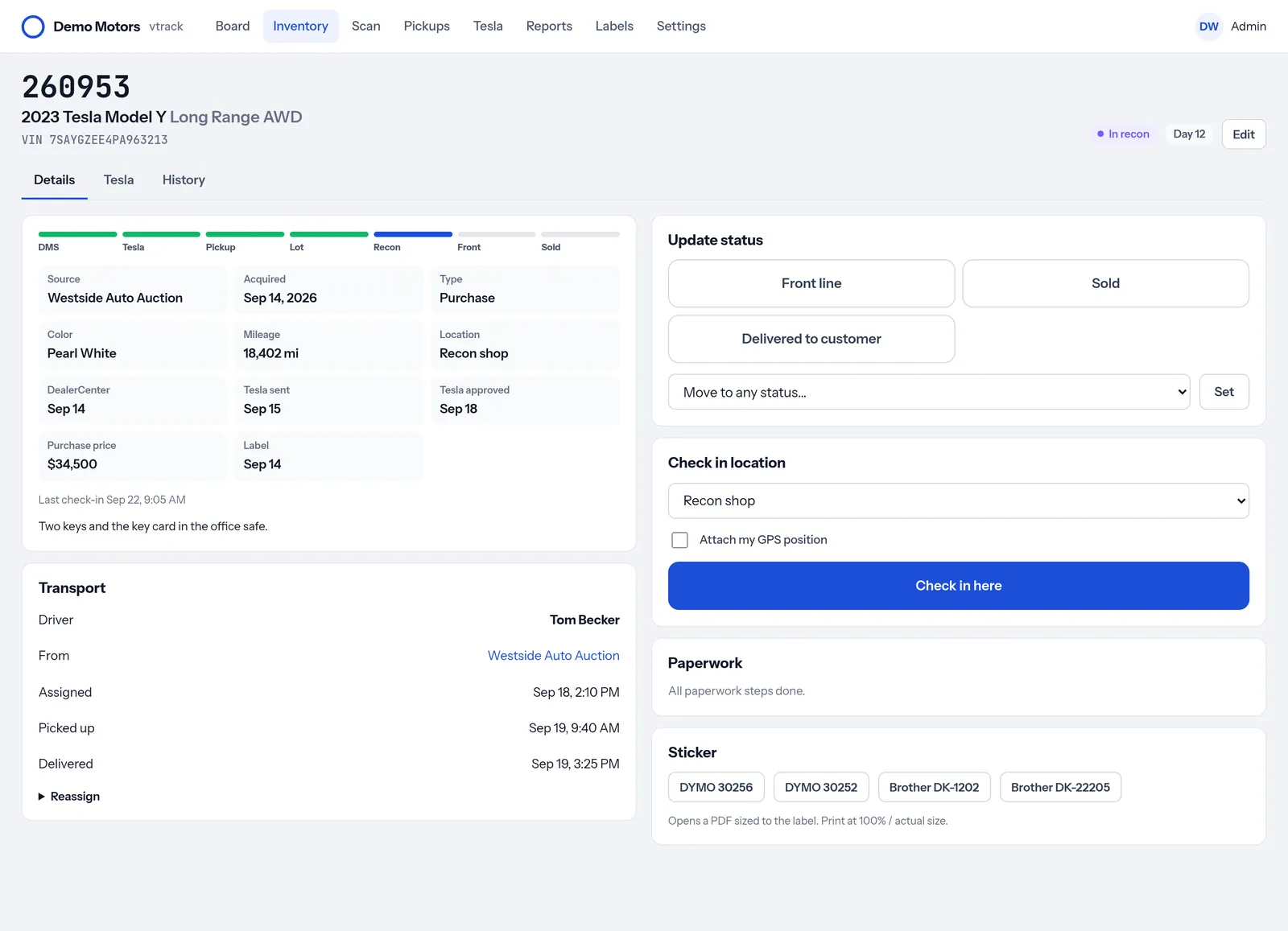
The app keeps track of the DealerCenter and Tesla transfer steps; it does not connect to DealerCenter, or start a transfer at Tesla.
Optional
Tesla remote control
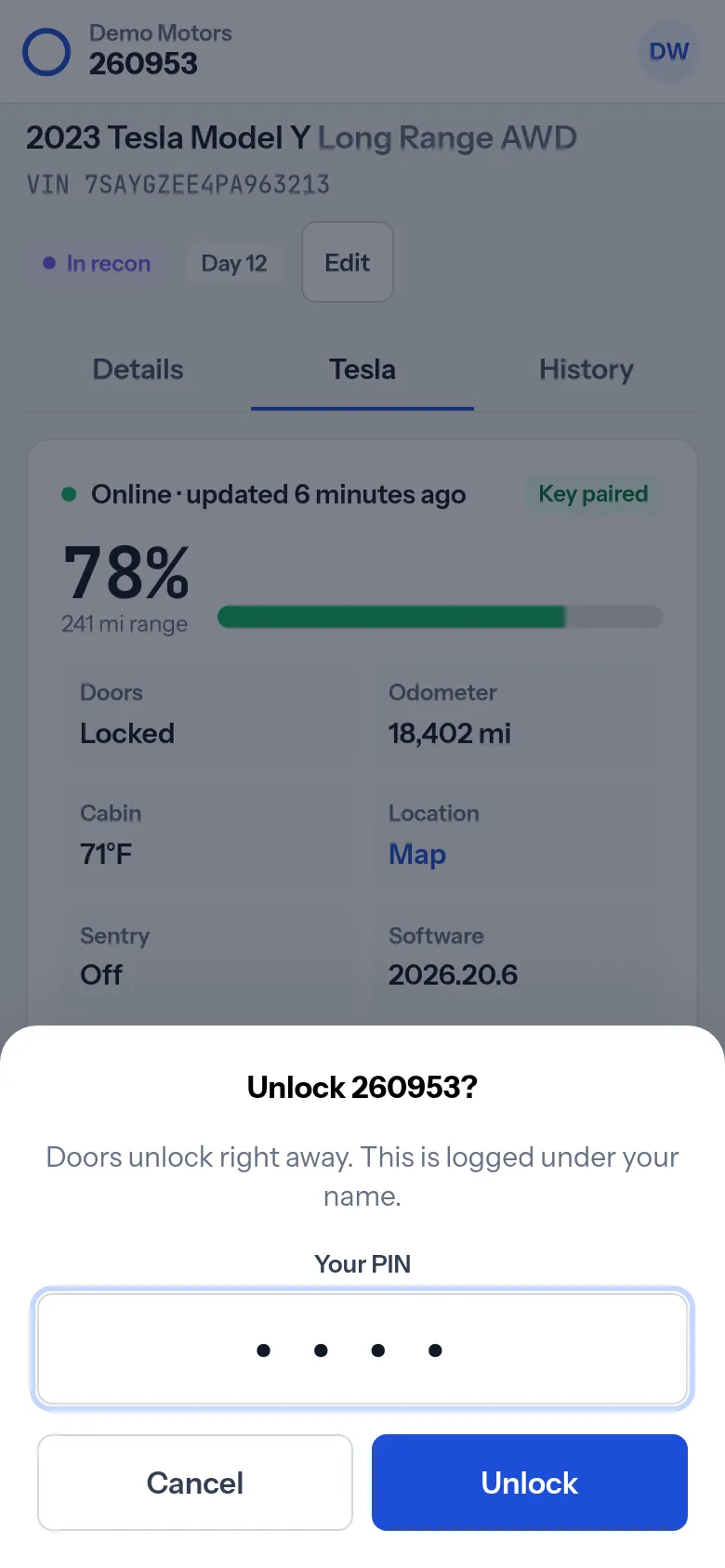
For Teslas on the dealership's Tesla account, each car's page gets a Tesla tab. See the battery and the locks, and unlock or start the car from your phone.
What you can see
- Battery and range
- Charging, when plugged in
- Locked or unlocked
- Cabin temperature
- Location, on a map
- Software version
- Odometer and Sentry
- Online or asleep
This is the car's last reading. Refresh data asks the car again; each refresh is one request that Tesla charges for.
What you can do
- UnlockPIN
- Lock
- Remote startPIN
- Climate on
- Climate off
- Flash lights
- Honk
- Frunk
- Trunk
- Charge port
- Close port
- Sentry on
- Sentry off
An admin can turn off Charge port and Close port. A sleeping car is woken up first (an admin can turn that off too), and there is a Wake up button.
What is “remote start”?
It lets someone drive the car without the key for about 2 minutes. It does not start a motor. If the doors are locked, send Unlock too. The car can say no, based on its own settings.
The safety rules
Only people with permission
Sending commands needs Tesla remote control. Managers and Admins have it, and it can be added to anyone. Others can look but not send.
Your PIN for unlock and remote start
Unlock and Remote start ask for your own 4 to 6 digit PIN. This is on unless an admin turns it off.
No double taps
The same command, to the same car, from the same person within 6 seconds is blocked.
A monthly budget cap
An admin sets a monthly cap, US$25 to start. The app estimates this month's Tesla cost, and at the cap it stops every paid Tesla request until an admin raises it or a new month starts.
Every command is logged
Every command sent to Tesla is saved with the person's name in the Tesla activity log, and in the car's history when the car is in stock.
Only cars with our key, only these commands
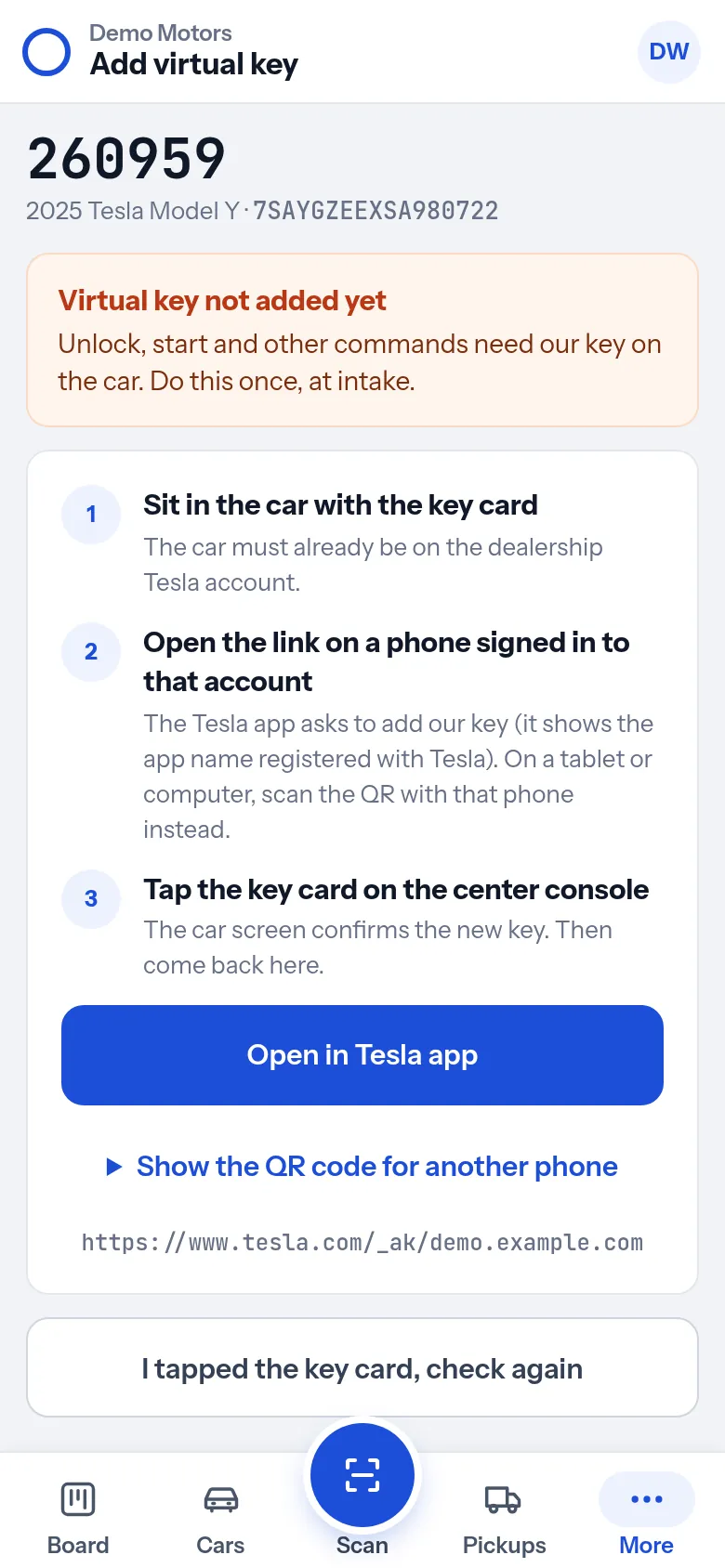
Newer Teslas need the dealership's virtual key; until it is added, their buttons stay off. The app sends only the 13 commands above, and refuses anything else.
What is needed
- The cars are on your dealership's Tesla account. That is the “Tesla approved” transfer step.
- A virtual key on each car, paired once with vtrack. Sit in the car with its key card, open the pairing link on a phone signed in to your dealership's Tesla account, and tap the key card on the center console.
- No Tesla developer account needed. Tesla usage runs through vtrack's Tesla app, with a monthly budget for your dealership. We don't bill you for it unless a written agreement says so.
- Switched on for your dealership. An admin connects your Tesla account in Settings after vtrack switches on live Tesla for your dealership. Until then, every Tesla screen can be tried with sample cars.
Who can do what
Each person gets a role. Tesla remote control is an add-on you can give to anyone, on top of their role.
| Task | Admin | Manager | Office | Driver | Recon | Viewer | Tesla add-on |
|---|---|---|---|---|---|---|---|
| See the board, the cars and their history | Yes | Yes | Yes | Yes | Yes | Yes | No |
| Add cars and edit them | Yes | Yes | Yes | No | No | No | No |
| Move a car forward to its next stage | Yes | Yes | Yes | Yes | Yes | No | No |
| Move a car back, or mark it Sold | Yes | Yes | No | No | No | No | No |
| See purchase prices | Yes | Yes | No | No | No | No | No |
| Check cars in with a scan | Yes | Yes | Yes | Yes | Yes | No | No |
| Assign pickups | Yes | Yes | Yes | No | No | No | No |
| Mark pickups Picked up and Delivered | Yes | Yes | Yes | Own | No | No | No |
| DealerCenter and Tesla transfer steps | Yes | Yes | Yes | No | No | No | No |
| Print stickers | Yes | Yes | Yes | No | Yes | No | No |
| Choose what prints on stickers | Yes | No | No | No | No | No | No |
| Choose the board columns everyone sees | Yes | No | No | No | No | No | No |
| Monthly report and its CSV | Yes | Yes | Yes | No | No | Yes | No |
| See Tesla data and add virtual keys | Yes | Yes | Yes | No | Yes | No | Yes |
| Unlock, start and control Teslas | Yes | Yes | No | No | No | No | Yes |
| Set up Tesla, the dealership name and logo, and users | Yes | No | No | No | No | No | No |
Admins add people and give them roles under Settings, Users & roles. Everyone can set their own PIN, turn on two-factor sign-in, change their password and arrange the board's columns for themselves.
For staff
Quick start for your team
Sign in on a phone or a computer. Here is where each job starts.
Office
- Tap + New intake, scan or type the VIN, and tap Create stock #.
- Print the sticker from the car's page, or many at once from Labels. Print at 100%.
- Under Assign pickup, choose the driver (or type a name) and tap Assign.
- As the paperwork gets done, tap Added to DealerCenter, and for Teslas Tesla request sent and Tesla approved.
Drivers
- Open Pickups on your phone. You see only your own pickups.
- Tap Picked up when you have the car.
- Tap Delivered when it is on our lot. The car moves to On lot.
- Or just scan its sticker in check-in mode when you arrive.
Lot & Recon
- Open Scan and pick Check in every scan at: the spot, like Main lot.
- Walk the lot and scan each sticker. No sticker? Scan the VIN barcode, or type the stock number.
- On the car's page, under Update status, tap the next stage: In recon, then Front line. Or drag its card on the Board.
- Recon: sticker missing or faded? Print a new one from the car's page.
Using the Tesla buttons? Set your PIN first: tap your initials at the top right, then My PIN.
Security and privacy
Your cars, prices and Tesla keys stay locked down. Here is how, in plain words.
Locked after 5 wrong passwords
After five wrong passwords from one internet address, that username is locked there for one hour. Passwords need at least 10 characters, and common ones are refused.
Two-factor sign-in
Anyone can turn on a 6-digit code from an authenticator app, with 10 backup codes. Lost phone? An admin resets it.
Signed out after a work day
A sign-in lasts 12 hours. The site only opens over a secure https connection.
No VIN in the QR code
The sticker's QR code is a link with a random code. Opening it still needs a sign-in.
Tesla keys locked away
Tesla sign-in tokens, secrets and keys are stored encrypted in the database. The signing program also needs the key as a file on the server, which other users on the server cannot open. The signing program only listens on the server itself.
Your dealership only
Each dealership only ever sees its own cars, people and Tesla data.
Checks before every action
Every page and button checks the person's role on the server. Tesla commands also pass the PIN, budget and double-tap checks first.
Everything written down
Each car's history and the Tesla activity log show who did what, and when.
Nightly backups, tested weekly
The database is backed up every night and kept for 14 days by default, encrypted when a passphrase is set. Every Sunday a backup is restored into a test copy to prove it works.
Private by default
Search engines are told to leave staff pages out, and only this page is listed for them. Error reports, if turned on, leave out what people type into forms and search boxes.
What you need
No special hardware beyond a label printer. Everything else runs in a web browser.
-
Nothing to install
vtrack runs online over a secure https connection. Your team signs in from a web browser: no server and no app to set up.
-
A label printer
A DYMO or Brother label printer with one of these labels:
- DYMO 30256 · 4" × 2-5/16" (windshield)
- DYMO 30252 · 3-1/2" × 1-1/8" (key tag)
- Brother DK-1202 · 3.9" × 2.4"
- Brother DK-22205 · 62 mm × 100 mm continuous
-
Phones with a camera
iPhone or Android, with a web browser. No app to install. Phones need a data or Wi-Fi connection on the lot.
-
Optional: for Tesla
The cars on your dealership's Tesla account, and each car's key card once. No Tesla developer account needed.
-
What it costs
Free trial: 30 days, no card needed.
After the trial, contact us for pricing. We never charge you without a separate written agreement.
Frequently asked questions
Do we need to install an app?
No. It is a website. Sign in from the web browser on a phone or a computer. The sticker's QR code is a normal link, so even the phone's own camera app can open the car, after you sign in.
On a phone you can add it to the home screen (on iPhone: Share, then Add to Home Screen; on Android: the browser menu, then Add to Home screen or Install app). It then opens full screen from its own icon, with Board, Cars, Scan and Pickups along the bottom.
Does it work on iPhone?
It runs in the phone's web browser, on iPhone or Android, and uses the phone's camera to scan. Allow the camera when the phone asks. The flashlight button only works on phones that allow it.
What if a sticker falls off?
Scan the VIN barcode on the driver door pillar or windshield instead, or type the VIN or stock number in the box under the camera. Then print a new sticker from the car's page.
What if the Tesla is asleep?
The app wakes it up before it sends a command, which can take 30 to 40 seconds (an admin can turn this off). If the car does not wake up, you see “The car did not wake up. It may be out of cell coverage.” There is also a Wake up button. Refresh data does not wake the car.
What does Tesla charge?
Tesla charges per use; see developer.tesla.com for current prices. Commands, data refreshes and wake-ups are paid requests. Your dealership's requests run through vtrack's Tesla app, so Tesla bills us, not you: the app estimates this month's cost and stops paid requests at the monthly budget your admin sets. We don't pass Tesla's charges on to you unless a written agreement says so. During a free trial you can try every Tesla screen with sample cars, which sends nothing to Tesla.
Can we bring our spreadsheet?
Yes: we import it for you. Ask from the empty board after you sign up.
Who can see purchase prices?
Only Managers and Admins. Everyone else sees neither the price nor the price box, and prices are never in the CSV downloads.
What happens when we sell a Tesla?
Remove the dealership's virtual key in the car (Controls, then Locks), and take the car off the dealership Tesla account as part of the transfer. The app does not do this for you: marking a car Sold changes nothing at Tesla.
Is our data backed up?
Yes. The database is backed up every night at 2:30 am and kept for 14 days by default, encrypted when a passphrase is set, and a test restore runs every Sunday. The backups are kept on the same server.
Do phones need internet on the lot?
Yes. The phone needs a data or Wi-Fi connection to reach the site. Nothing is saved on the phone for later.
For other dealerships
Request a demo
Want to see vtrack with your own lot in mind? Tell us a little about your dealership, and we will get back to you.
- Emailhello@vtrack.callmor.ai
- Phone(949) 220-2222